How to deploy n8n, Ollama, Qdrant, and PostgreSQL on Oracle Cloud ARM Infrastructure.
Note: This post is not affiliated by Oracle nor n8n.
Stop paying monthly subscriptions for intelligence you can own.
We’re past the point where you need a credit card and an API key to build useful agents. If you combine n8n (automation) with Ollama (local LLM inference), you get a private, self-hosted stack that costs $0/month.
The problem? Most “free tier” cloud servers are toys. AWS and Google give you 1GB of RAM, which barely runs a web server, let alone an AI model.
Oracle Cloud is the exception. Their “Always Free” Ampere tier gives you 4 vCPUs and a massive 24 GB of RAM. That’s enough to run a production-grade Llama 3.1 model entirely in memory.
You can create your Oracle Cloud account here: https://www.oracle.com/cloud/sign-in.html
Here is the exact playbook to turn that infrastructure into a sovereign AI hub.
1. The Stack: Why This Combo?
We aren’t just throwing random tools together. This is a cohesive system.
- n8n: The platform to create automation workflows by handling the logic and connecting different apps.
- PostgreSQL: The memory of our workflows. We’re ditching SQLite because it chokes under concurrent traffic. Postgres is solid.
- Ollama: It runs the models locally on the CPU/RAM.
- Qdrant: A vector database that lets your AI “read” your PDFs and documents (RAG).
- Caddy: Handles HTTPS automatically so you don’t have to mess with certbot.
2. Prepare the server “Virtual Metal”
Cloud servers are paranoid by default. They block everything. Before installing software, we need to smash through two specific barriers.
A. The Double-Lock Firewall
Oracle has a nasty habit of layering firewalls. If you open one and forget the other, your connection times out.
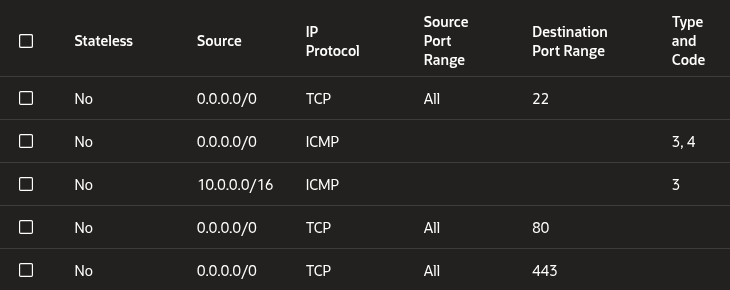
Lock 1: The Cloud Console (The Gate)
This blocks traffic before it hits your server.
- Go to OCI Console > VCN > Select your VCN> Security Lists > Default Security List > Security rules
- Add an Ingress Rule allowing traffic from 0.0.0.0/0 on ports 80 (HTTP) and 443 (HTTPS).
Lock 2: The OS Firewall (The Door)
Ubuntu on Oracle uses iptables rules that are aggressive. They usually REJECT everything but SSH. You need to force your allow rules above the reject rules.
Run this on your server:
# Force HTTP (80) and HTTPS (443) rules to the top of the chain
sudo iptables -I INPUT 1 -p tcp --dport 80 -j ACCEPT
sudo iptables -I INPUT 1 -p tcp --dport 443 -j ACCEPT

# Save so you don't lose access on reboot
sudo netfilter-persistent save
B. The Data Vault (Storage)
Do not skip this step.
Your VM comes with a tiny boot volume. If you fill it with AI models and logs, the OS will crash.
Create a free 100GB Block Volume in the Oracle console and attach it to your VM. Once attached (usually as /dev/sdb), format and mount it:
# Format the new disk
sudo mkfs.ext4 -F /dev/sdb

# Create a clean home for your stack
sudo mkdir -p /mnt/n8n_data

# Mount it and take ownership
sudo mount /dev/sdb /mnt/n8n_data
sudo chown -R $USER:$USER /mnt/n8n_data
3. Installing Docker on ARM
Here’s a trap for beginners: You are running on an ARM processor. The standard “convenience scripts” (get-docker.sh) often fail or pull incompatible plugins.
Do it manually to ensure stability.
# 1. Clean update & dependencies
sudo apt-get update
sudo apt-get install -y ca-certificates curl gnupg

# 2. Add Docker's official GPG key
sudo install -m 0755 -d /etc/apt/keyrings
curl -fsSL https://download.docker.com/linux/ubuntu/gpg | sudo gpg --dearmor -o /etc/apt/keyrings/docker.gpg
sudo chmod a+r /etc/apt/keyrings/docker.gpg

# 3. Add the ARM64 repository
echo \
  "deb [arch="$(dpkg --print-architecture)" signed-by=/etc/apt/keyrings/docker.gpg] https://download.docker.com/linux/ubuntu \
  "$(. /etc/os-release && echo "$VERSION_CODENAME")" stable" | \
  sudo tee /etc/apt/sources.list.d/docker.list > /dev/null

# 4. Install the Engine
sudo apt-get update
sudo apt-get install -y docker-ce docker-ce-cli containerd.io docker-compose-plugin docker-buildx-plugin

# 5. Fix permissions (so you don't need 'sudo' for every docker command)
sudo usermod -aG docker $USER
newgrp docker
4. Configuration: Production Mindset
We are going to separate the Configuration (static files) from the Data (dynamic files).
Create the Hierarchy:
# Config lives on the boot drive
sudo mkdir -p /opt/n8n_stack

# Data lives on the big 100GB volume
sudo mkdir -p /mnt/n8n_data/{n8n_home,postgres_data,ollama_data,qdrant_data,caddy_data}

# CRITICAL: Fix n8n permissions. Docker user 1000 needs to own this.
sudo chown -R 1000:1000 /mnt/n8n_data/n8n_home
sudo chown -R $USER:$USER /mnt/n8n_data
The Secrets File (.env):
Never hardcode passwords in your YAML. Create /opt/n8n_stack/.env:
# --- Network ---
DOMAIN_NAME=n8n.yourdomain.com
DATA_ROOT=/mnt/n8n_data

# --- Security ---
N8N_BASIC_AUTH_USER=admin
N8N_BASIC_AUTH_PASSWORD=StrongPassword123
# Use 'openssl rand -hex 16' to generate this
N8N_ENCRYPTION_KEY=YourGeneratedKeyHere
QDRANT_API_KEY=YourRandomStringHere

# --- Database ---
POSTGRES_USER=n8n
POSTGRES_PASSWORD=DbPassword123
POSTGRES_DB=n8n

# --- Timezone ---
GENERIC_TIMEZONE=Europe/Berlin
TZ=Europe/Berlin
5. The Master Blueprint
This docker-compose.yml orchestrates the services. It ensures the database is ready before n8n wakes up and that your data persists on the large drive.
Create /opt/n8n_stack/docker-compose.yml:
services:
  caddy:
    image: caddy:latest
    restart: unless-stopped
    ports:
      - "80:80"
      - "443:443"
    volumes:
      - ${DATA_ROOT}/caddy_data:/data
      - ${DATA_ROOT}/caddy_config:/config
      - ./Caddyfile:/etc/caddy/Caddyfile
    networks:
      - n8n_ai_network

  n8n:
    image: n8nio/n8n:latest
    restart: unless-stopped
    environment:
      - N8N_HOST=${DOMAIN_NAME}
      - WEBHOOK_URL=https://${DOMAIN_NAME}/
      - DB_TYPE=postgresdb
      - DB_POSTGRESDB_HOST=postgres
      - DB_POSTGRESDB_PORT=5432
      - DB_POSTGRESDB_DATABASE=${POSTGRES_DB}
      - DB_POSTGRESDB_USER=${POSTGRES_USER}
      - DB_POSTGRESDB_PASSWORD=${POSTGRES_PASSWORD}
      - N8N_ENCRYPTION_KEY=${N8N_ENCRYPTION_KEY}
      - N8N_BASIC_AUTH_ACTIVE=true
      - N8N_BASIC_AUTH_USER=${N8N_BASIC_AUTH_USER}
      - N8N_BASIC_AUTH_PASSWORD=${N8N_BASIC_AUTH_PASSWORD}
      - GENERIC_TIMEZONE=${GENERIC_TIMEZONE}
    volumes:
      - ${DATA_ROOT}/n8n_home:/home/node/.n8n
    networks:
      - n8n_ai_network
    depends_on:
      postgres:
        condition: service_healthy

  postgres:
    image: postgres:16-alpine
    restart: unless-stopped
    environment:
      - POSTGRES_USER=${POSTGRES_USER}
      - POSTGRES_PASSWORD=${POSTGRES_PASSWORD}
      - POSTGRES_DB=${POSTGRES_DB}
    volumes:
      - ${DATA_ROOT}/postgres_data:/var/lib/postgresql/data
    networks:
      - n8n_ai_network
    healthcheck:
      test: ["CMD-SHELL", "pg_isready -h localhost -U ${POSTGRES_USER} -d ${POSTGRES_DB}"]
      interval: 5s
      timeout: 5s
      retries: 5

  ollama:
    image: ollama/ollama:latest
    restart: unless-stopped
    container_name: ollama
    volumes:
      - ${DATA_ROOT}/ollama_data:/root/.ollama
    networks:
      - n8n_ai_network

  qdrant:
    image: qdrant/qdrant:latest
    restart: unless-stopped
    environment:
      - QDRANT__SERVICE__API_KEY=${QDRANT_API_KEY}
    volumes:
      - ${DATA_ROOT}/qdrant_data:/qdrant/storage
    networks:
      - n8n_ai_network

networks:
  n8n_ai_network:
    external: false
6. Accessing the n8n instance
You have two ways to reach your server.
Path A: The Pro Route (Domain Name)
If you own a domain, create an A Record pointing to your Oracle IP. Then, create a Caddyfile in /opt/n8n_stack/:
n8n.yourdomain.com {
    reverse_proxy n8n:5678
}
Caddy handles SSL automatically. It just works.
Path B: The Test Route (SSH Tunnel)
No domain? No problem.
- Delete the caddy service from the YAML file above.
- Change the n8n ports to: 127.0.0.1:5678:5678.
- Run this on your local machine to tunnel in:
ssh -L 5678:localhost:5678 ubuntu@<YOUR-ORACLE-IP>
Now browse to http://localhost:5678
7. Launch and Model Installation
Time to deploy the whole stack.
cd /opt/n8n_stack
docker compose up -d
Set up the Brain of the deployment.
Ollama starts empty. You need to pull the models into RAM. We’ll use Llama 3.1 for thinking and Nomic for vector embeddings, in case one of the use cases will need RAG (Retrieval-Augmented Generation)
# The chat model
docker exec -it ollama ollama pull llama3.1

# The embedding model (for RAG)
docker exec -it ollama ollama pull nomic-embed-text
8. Troubleshooting
I hit a couple of issues during the deployment, so I wanted to share it here so you don’t have to troubleshoot it again.
- “EACCES: permission denied”: This means your n8n container (user 1000) can’t write to the host folder.
Fix: sudo chown -R 1000:1000 /mnt/n8n_data/n8n_home.
- 502 Bad Gateway: Caddy is up, but n8n is dead.
Fix: Check docker logs n8n_stack-n8n-1. It’s almost always a wrong DB password in your .env.
- Connection Timed Out:
Fix: You forgot one of the firewalls. Check the Oracle Cloud Console (Ingress Rules) AND the server’s iptables.
Your Move
You now have a system that SaaS companies charge hundreds a month for. It’s running on your own metal, your data never leaves the server, and it costs zero dollars.
Go build something dangerous 😉